How to use Maren
How each part fits together — and the one thing that matters most per surface.
The 2-minute version
Maren turns your misses into a map. You log what you got wrong and why; Maren finds the patterns and tells you what to work on next.
Day one: set your test date in Plan, add a resource or two you're using, then log your first missed question in Study. Everything else builds from there.
Plan — where you're going
Goals: test date, target score, baseline, weekly hours, per-section goals. Maren uses all of these to pace you and to calibrate the daily tip.
Full Lengths: every full-length practice test by section, plotted over time. Section trends are the single highest-signal metric in MCAT prep — log every one, including ones you don't want to think about.
Resources: your personal library. Only add what you're actually using — the AAMC inventory tracker catches burning AAMC content too early, which is the most common self-inflicted prep mistake.
Study — what to do today
Log a Question: paste or screenshot a missed question. Tag why it went wrong (conceptual gap, misread, careless, timing, etc.). Optionally build a flashcard from THIS miss and push it straight to Anki.
Quick Practice Quiz: Maren writes 3–15 MCAT-style questions targeting your weakest areas, then logs your results back into your history. Rate your confidence per question — that signal powers the trend chart on Review.
Log a Session: record a focused block of content review, FL review, or any study work. Builds your streak and feeds the day × hour heatmap on Sessions.
Review — find the patterns
Every question you've logged, with filters by section, topic, tag, date, and confidence. Click any row to expand and edit.
Three panels at the top matter most: Error Patterns (what kind of mistakes dominate), Confidence Trend (which topics are actually getting stronger), Weak Areas (the ranked list Maren uses for quiz generation).
Bulk-select rows and apply tags to backfill pre-tagging data — takes two minutes, dramatically sharpens every analytics view afterward.
Chat with Maren
The Chat tab is your AI coach. Maren sees everything you've logged — questions, full-length trends, error patterns, sessions, AAMC progress, Anki health if connected — and the advice is specific to you.
Use the floating Maren button to chat from any page without leaving what you're doing. Paste images directly into the chat if you want Maren to walk through a specific question.
Dashboard
Your snapshot. Test countdown, streak, latest FL, AAMC inventory, section mastery, weekly activity, top weak areas. Connecting Anki happens here too. Otherwise it's status; use the top nav to actually do things.
Plans
Free. Record: unlimited question logging, your own reflections and tags, full history with search and edit, session tracking, full-length logging, and export. Free forever, no card. The paid layer is everything that interprets that record: Mistake Insights, the weak-area dashboard and trends, the auto-generated weekly plan, Anki sync, and the AI tools. Accounts created before August 3, 2026 also keep the weak-area dashboard, error analytics, and planner free permanently, and accounts created before August 19, 2026 keep Anki free permanently.
Study Pass (3-month $99, 6-month $149, one-time). Full access for your prep window: unlimited Maren chat, worked-solution explainer, practice quizzes, photo capture, AI flashcards, Smart Replan. Paid once, no rebill; the pass simply ends after its window. (Fair-use ceilings sit well above any realistic student volume; they exist to block scripted abuse, not to meter your prep.)
Monthly ($39/mo). The same full feature set, month to month, cancel anytime. For a full prep the passes cost less; monthly exists for students who need only a few weeks. Grandfathered Pro/Max subscribers keep their existing plan and price.
Connecting Anki
Optional, and entirely local: Maren reads your deck health — cards due, mature cards, leeches — and can push AI-built flashcards straight into your decks. It all runs on your own computer, so Anki has to be open. Here is the one-time setup:
1. Install Anki desktop (free, from ankiweb.net) and open it. Keep Anki running while you use Maren.
2. In Anki, open Tools → Add-ons → Get Add-ons, paste the code
2055492159(AnkiConnect), click OK, then restart Anki.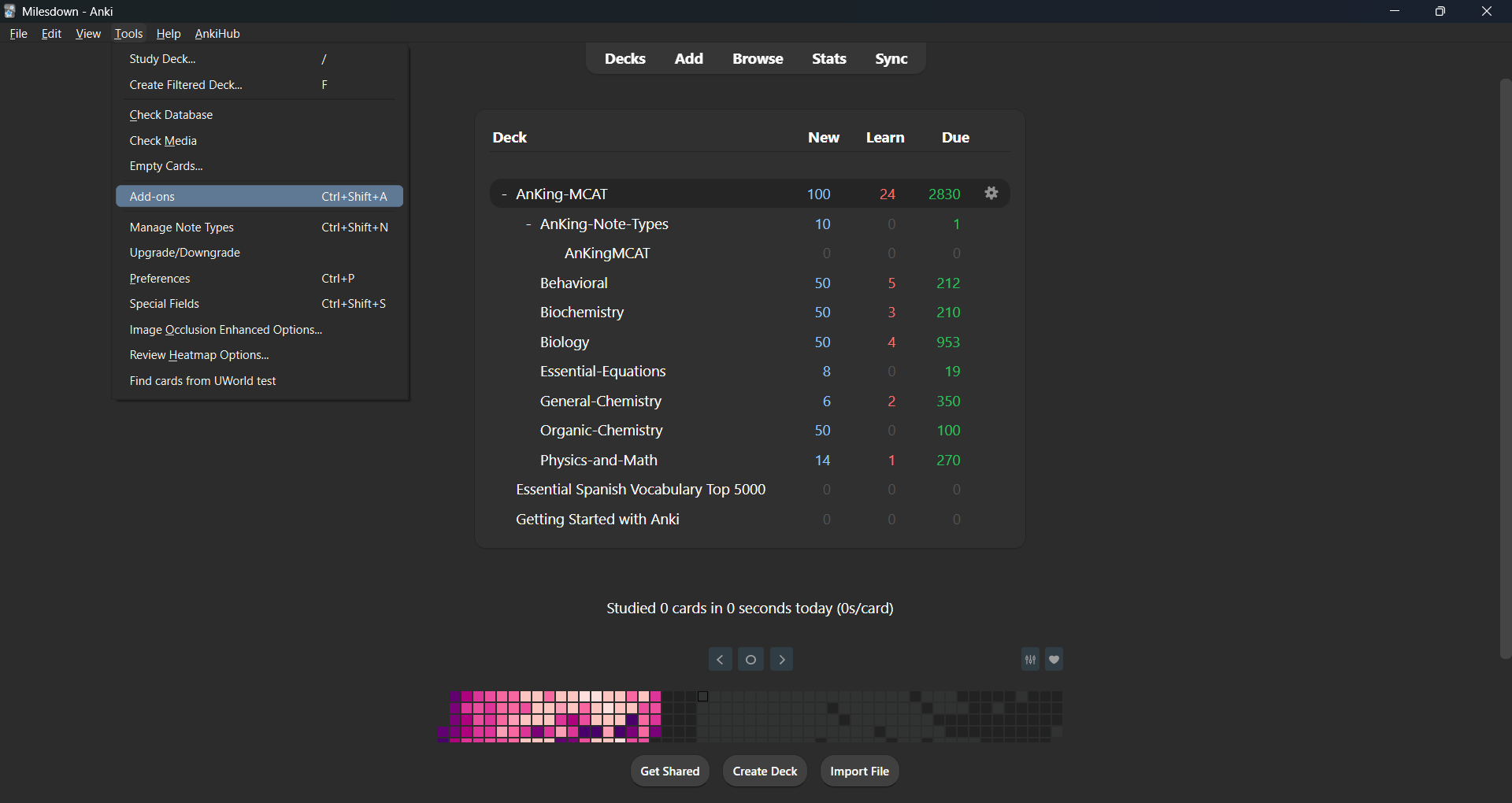
Anki → Tools → Add-ons 3. Open Tools → Add-ons again, select AnkiConnect in the list, and click Config.
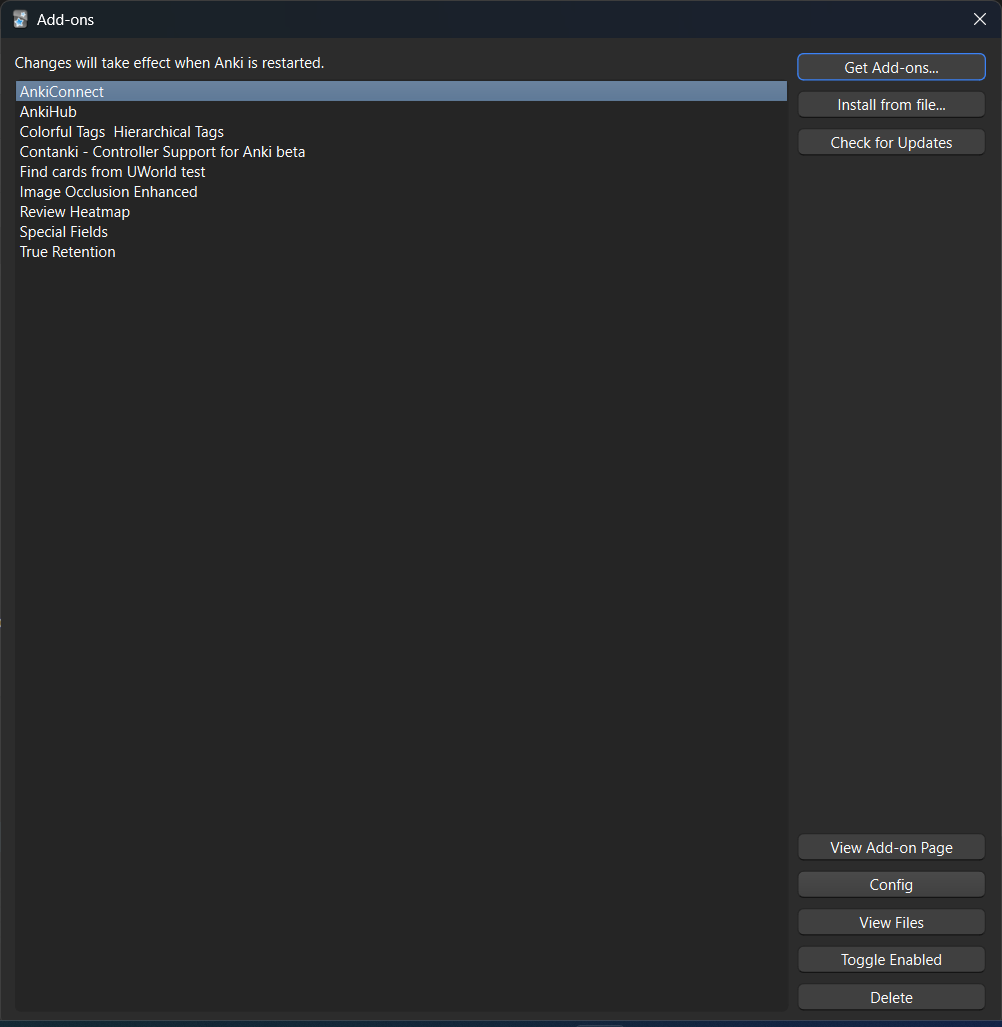
Select AnkiConnect, then click Config 4. Select everything already in the config box, delete it, paste this in its place, then click OK:
AnkiConnect config{ "apiKey": null, "apiLogPath": null, "ignoreOriginList": [], "webBindAddress": "127.0.0.1", "webBindPort": 8765, "webCorsOriginList": [ "http://localhost", "https://www.joinmaren.com", "https://joinmaren.com" ] }Those are AnkiConnect's normal defaults with the two Maren addresses added. If you have changed this config yourself before (an API key, a different port, other sites in the list), don't replace it. Add just the two
joinmaren.comlines to your existingwebCorsOriginList.5. Restart Anki one more time. Then, back in Maren, go to Settings → Maren Context → Anki Integration and click Test connection. The status turns to Connected and your decks appear underneath it.
6. Tick the decks you actually study from, then click Save. Maren only reads the decks you pick, and your Anki card health won't show up on the Dashboard until at least one deck is saved.
Anki must be open on this computer for Maren to read your decks. Card health syncs only while Anki is running. You only do this setup once — the addresses stay saved.
Something broken, billing question, or feedback?
Maren Chat is the right place for study help. For anything else, like bugs, billing, a feature idea, or a data-access request, email us directly. We read every message.
FAQ
Questions you might have
The objections we hear most often. Plan-and-billing questions live on the pricing page.